
Get from question
to next step.
Practical answers for your first scan, your next integration and the people in your workspace.
Already investigated? Open a support request
What can we help you with?
A smoother scan,
one step at a time.
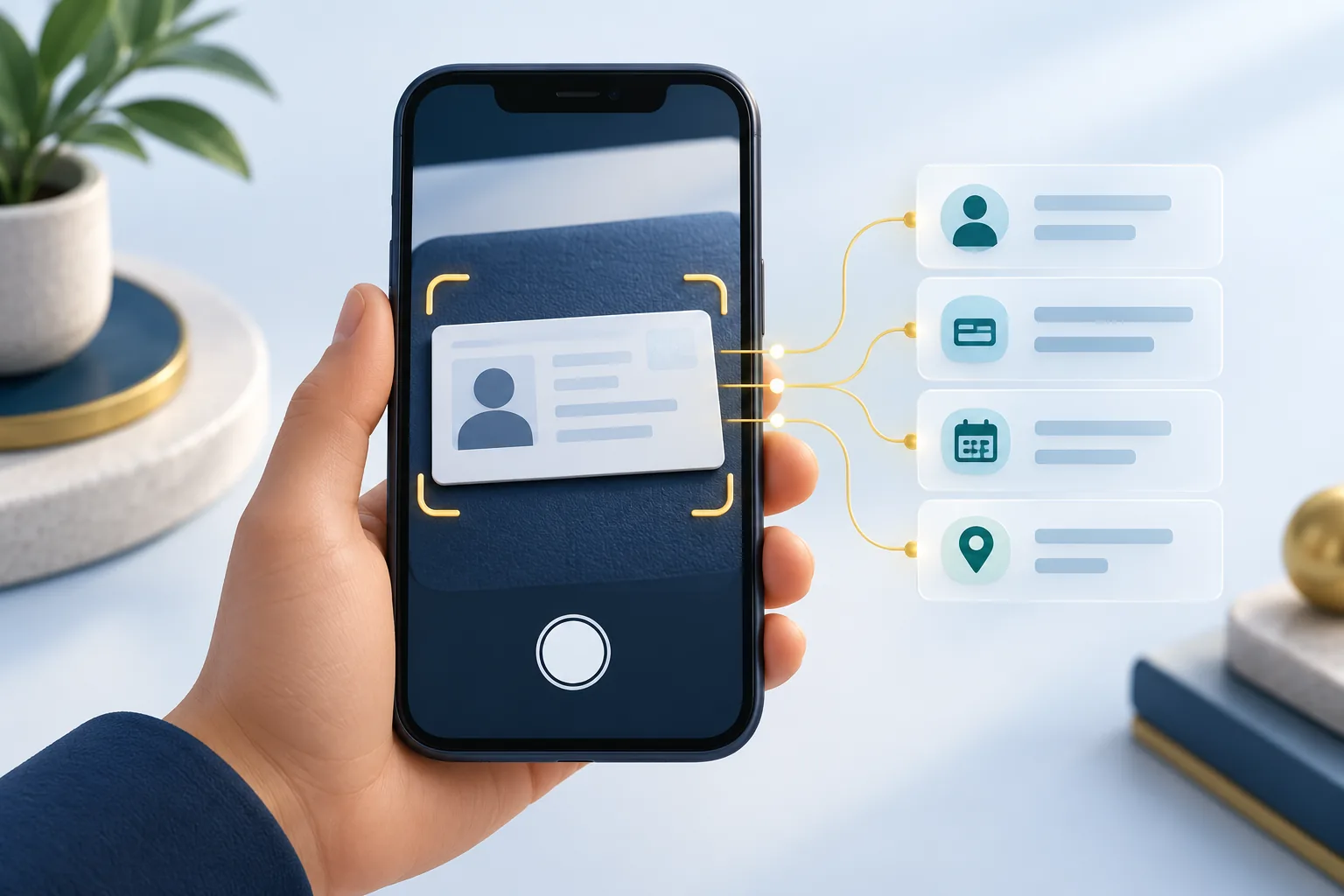
Use a document you are authorized to process. Good framing and clear guidance make the review easier.
 Open Test Studio
- 01
Prepare your setup
Use a maintained browser, clean camera lens and even lighting. Activate the edition evaluation you want to test.
- 02
Start with permission
Select Start camera and allow access for this site. Remote capture requires HTTPS.
- 03
Hold the front clearly
Keep the whole document visible and steady. Once the image is captured, wait while reading finishes.
- 04
Choose the second side
Turn the document over when prompted, then select Scan back. Keep the requested side in view.
- 05
Review before relying
Check every extracted detail against the document. Use the rescan action if content is incomplete or incorrect.
Find the guidance you need.
Browse by topic or search the complete answer library. Detailed developer guides are linked from relevant answers.
26 answers across 6 topics
No matching answers. Try a shorter phrase, choose another topic or open a support request.
Getting started
How do I run my first evaluation?
Create an account, confirm your email and activate the edition evaluation in your workspace. Open Test Studio, select the edition and choose Start camera. You can also use the clearly labelled fictional sample to explore the interface without presenting a document.
Quick startWhich edition should I start with?
Start with SENSE to evaluate capture and extraction. GUARD adds guided presentation assessment interfaces; SHIELD adds advanced fraud-analysis interfaces. Their qualified originality and fraud verdicts are not currently available. Choose based on both workflow scope and current qualification status.
Compare editionsCan I explore without using a real document?
Yes. The fictional sample in Test Studio demonstrates the result interface. It is not a camera scan, an accuracy benchmark or physical qualification evidence. Use only documents you are authorized to process for actual capture.
Open Test StudioCamera and capture
The camera does not open. What should I check?
Allow camera permission for this exact site. Use HTTPS on remote hosts, close other applications using the camera and return to the foreground. If permission was denied, change browser site settings and explicitly retry. Moving the document closer cannot grant camera access.
Camera troubleshootingWhy does the first scan take longer?
The first session downloads and initializes the runtime and OCR models. Network speed, device memory and processing load affect startup. Wait for preparation to finish before retrying. A normal retry does not require a hard refresh or repeated model downloads.
Runtime setupWhen should I turn the document over?
Wait until the first side has been captured and read. Turn it over and select Scan back when prompted. The handoff is explicit so the second side does not begin while you are still positioning it. Keep the complete requested side visible.
Capture walkthroughHow can I improve low-light or blurry captures?
Use brighter, even lighting, clean the lens and avoid glare over printed content. Hold the document steady and keep its edges visible. Move closer only until text is sharp and the whole card still fits. Software cannot recover detail the camera never captured.
Reading guidanceThe document looks mirrored. What should I do?
Keep printed content readable in the capture. Do not flip a correctly oriented image. If the integration exposes an orientation control, test it with the actual camera and both sides. Preview appearance and recognition orientation must be handled consistently.
Camera control referenceWhat happens if I change tabs or cancel?
The hosted capture flow releases the camera when cancelled or backgrounded. Return to the page and choose Start camera explicitly to continue. If the browser or operating system interrupts access, retry after restoring permission and closing competing camera applications.
Lifecycle examplesResults and review
Some extracted information is incomplete. Can I edit it?
The hosted Test Studio displays read-only extraction results. Use Correct details: rescan front to begin a fresh capture. Improve framing and lighting so every printed word is visible. Review the result against the document rather than accepting guessed or partial content.
Reading and rescanDoes a completed read mean the document is genuine?
No. Capture completion and OCR extraction are separate from issuer authenticity and physical originality. Data consistency can identify issues but cannot replace a qualified originality check. Your application must apply its own review and authorization policy.
Understand result boundariesWhat do unavailable and inconclusive mean?
The required qualified evidence is missing or cannot support a reliable decision. These outcomes are not genuine-or-fake verdicts. Unqualified originality must not enable automatic registration. Repeating a scan cannot activate a model that is unavailable.
Capability statusWill it work for every document and language?
Coverage depends on the supported profile, document generation, script, numeral format and device. Validate representative authorized samples for each target market. Global product positioning does not imply universal document or language coverage.
Coverage assessmentAccount and team
Why is login required?
Workspace access ties projects, evaluation access, quote requests and support records to your organization. Test Studio and evaluation downloads require a signed-in account with active evaluation access. Public product information and developer guides remain accessible without login.
Sign inI forgot my password. How do I recover access?
Choose Forgot password and request a reset link. Links expire after 30 minutes and can be used once. Check your junk folder and use the newest valid message. If email is unavailable, a previously saved single-use recovery code provides an alternative. Never share that code with Support.
Recover accessThe email confirmation link is not working.
Sign in to the account matching the message before confirming it. Expired or already used links cannot be reused. From Account and security, request another confirmation email. Avoid forwarding action links to other people.
Account and securityHow do I manage my team?
Authorized owners or administrators can invite team members from Organization and select an available role. Use individual accounts and grant the permissions required for the work. Requests and projects remain scoped to the signed-in organization.
Organization settingsHow do I change my password or end a session?
Open Account and security to change your password. Password changes and resets revoke existing sessions. Sign out ends the current session. Store recovery codes in a safe place separate from the account password.
Account and securityIntegration
Where do I find the SDK and a working example?
Activate an evaluation and open the SDK download guide. Download the SDK and browser example, extract them together and follow the setup instructions. The example includes explicit second-side handoff, cancellation and a private result event for your application.
SDK access and downloadsCan I run capture on localhost?
Yes, localhost is a browser development exception for camera access. Serve the example over a local HTTP server. A phone using another computer address needs an HTTPS deployment; that address is not the phone localhost.
Run the exampleHow should I investigate a runtime error?
Record the edition, SDK version, error code, browser family and the step where it happened. Check asset paths, MIME types, HTTPS and compatible worker policies. Keep document information, credentials and tokens out of logs.
Events and errorsHow do I prepare for a production integration?
Validate target documents and physical devices, measure performance and accuracy, review data handling and agree commercial licensing. Exercise camera denial, cancellation, rescan, session expiry and recovery. Keep unqualified originality and fraud outcomes blocked.
Deployment and release reviewTrials and purchasing
How long does an evaluation last?
Each organization can activate a 14-day evaluation for an edition. Repeated activation does not reset an existing expiry date. Open Support to discuss an extension or additional evaluation requirements.
Evaluation accessHow do I request pricing or purchase access?
Submit a quote request with edition, anticipated volume, deployment and support requirements. Its reference and status appear in Usage and billing. This release collects no payment online; a request does not issue a production license.
Request pricingWhere can I see an existing request?
Open Usage and billing for purchase requests or Support for technical requests. Select the reference to see the submitted details and current status. Include that reference when providing additional information.
Your support requestsDo you offer a guaranteed response time?
Support responsibilities and service levels are agreed commercially. This portal does not promise an unapproved response time or round-the-clock service. Submit a clear request and discuss the support arrangement needed for your deployment.
Contact CEBSA useful request starts with safe details.
Help us reproduce the issue while keeping identity data and account secrets out of ordinary support text.
Include the technical context
- Edition and SDK version, if known.
- Device, operating system and browser.
- The step you reached and any error code.
- What you expected and what happened.
- An existing request reference, if relevant.
Keep sensitive information private
- Do not paste document images or extracted content.
- Do not share passwords or recovery codes.
- Remove tokens and personal information from URLs.
- Ask for an approved secure process before sharing sensitive evidence.
- Use fictional samples when they reproduce a software issue.
Keep your evaluation moving.
Check service availability, work through a guide or open a request in your workspace.